
We’re thrilled to announce the latest enhancements to our reporting capabilities. This blog post will take you through our new report categories and explain how they can streamline your legal workflow. You can also click here for an in-depth look inside each report.
Matter Reports
Matter reports provide detailed insights into specific cases. Here are the newly updated reports:
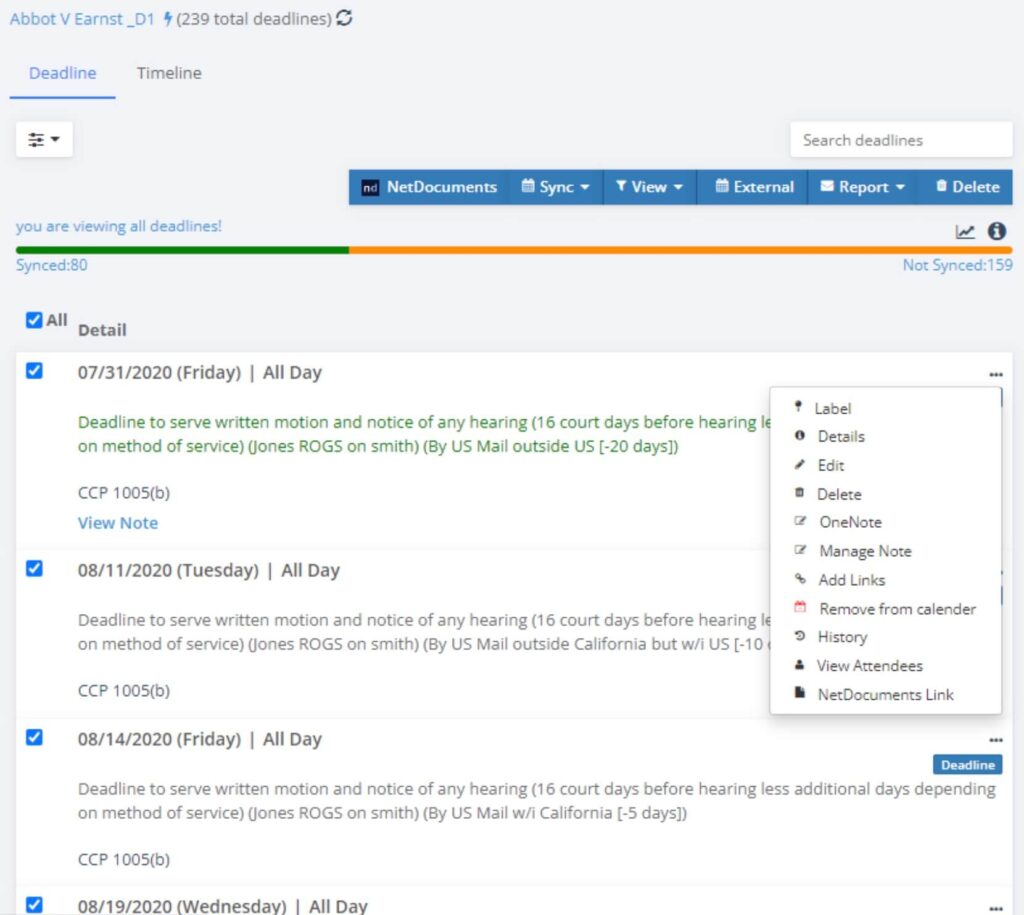
Matter Deadline Reports: Accessible from our add-ins and apps, these reports provide a comprehensive chart of case deadlines. Users can click on ‘authority’ to view relevant legal sources or add their own links to events.
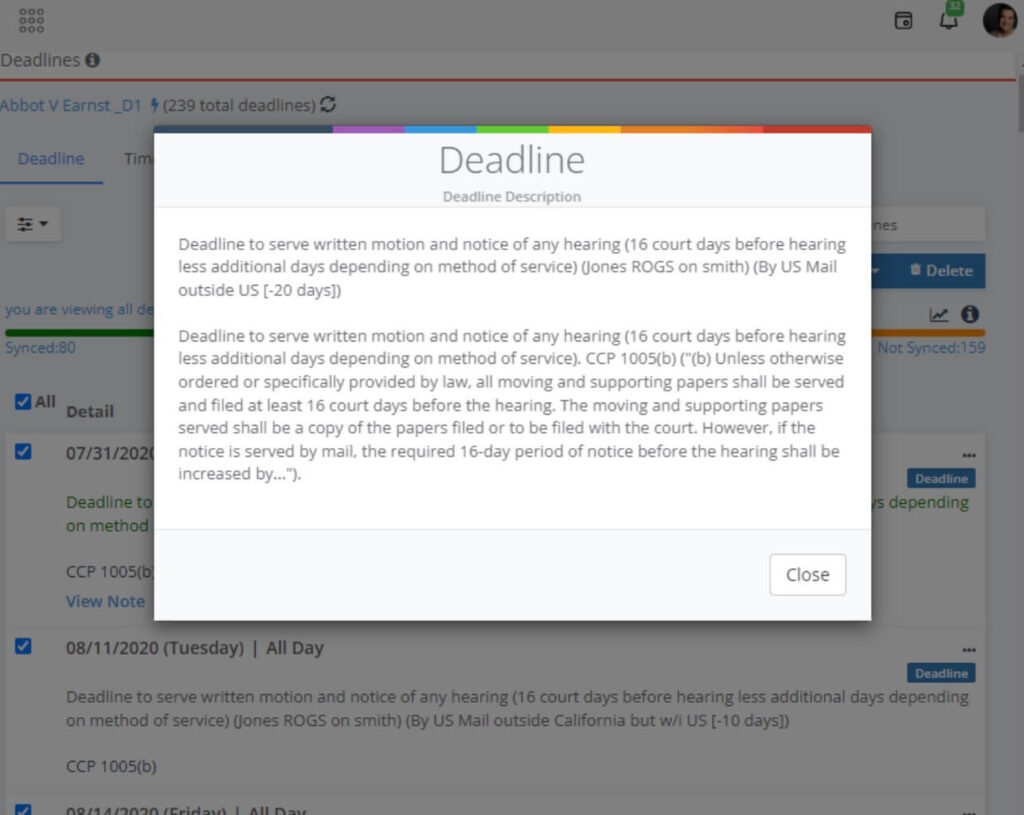
Detailed Deadline Descriptions: Click on ‘details’ to get a deeper understanding of deadlines generated by LawToolBox.
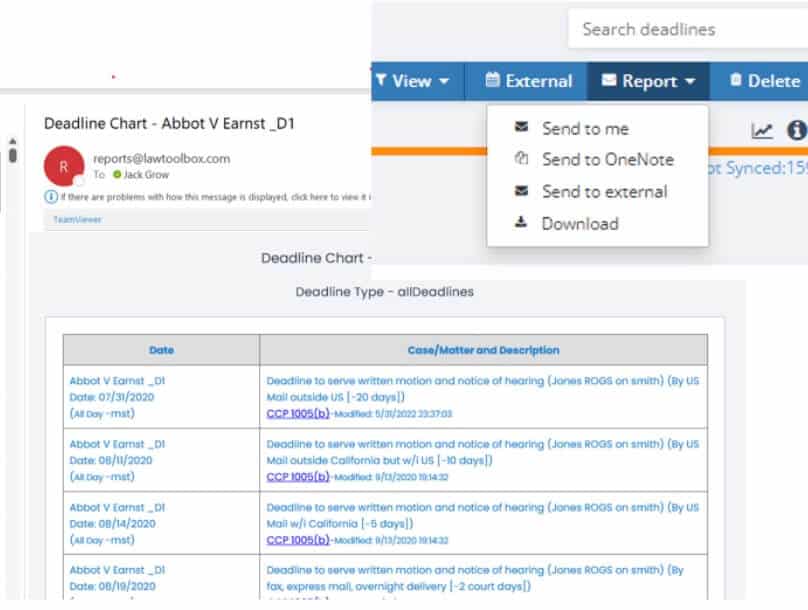
Email or Send Deadline Reports: Now, deadline charts can be emailed directly to users, external individuals, or the matter’s OneNote.
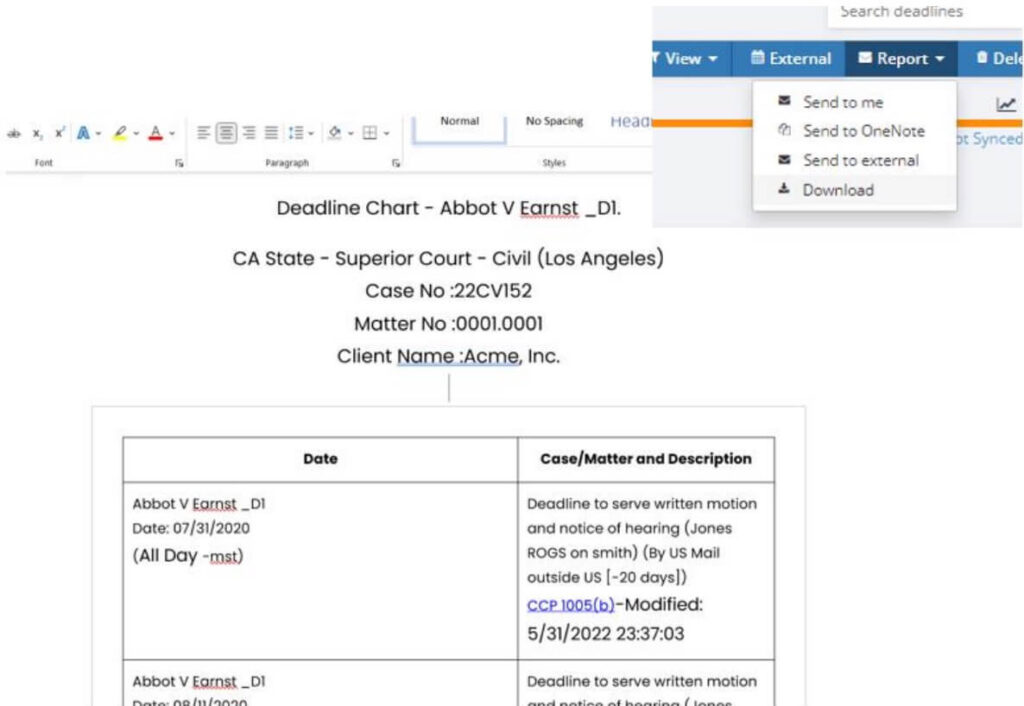
Download Deadline Reports: Download Microsoft Word versions of the deadline charts for offline use or to save to a physical matter file.
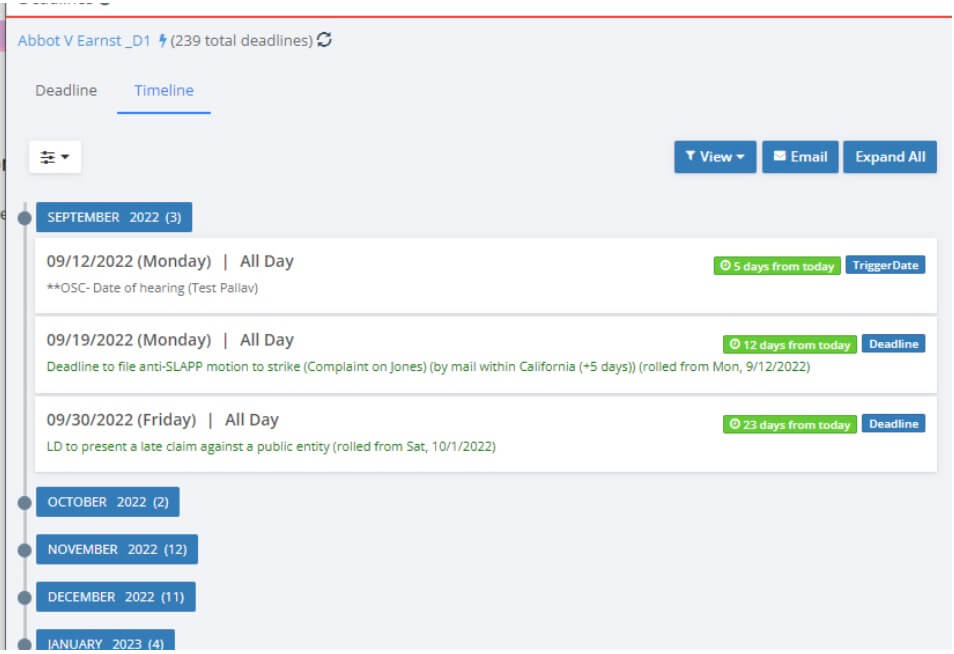
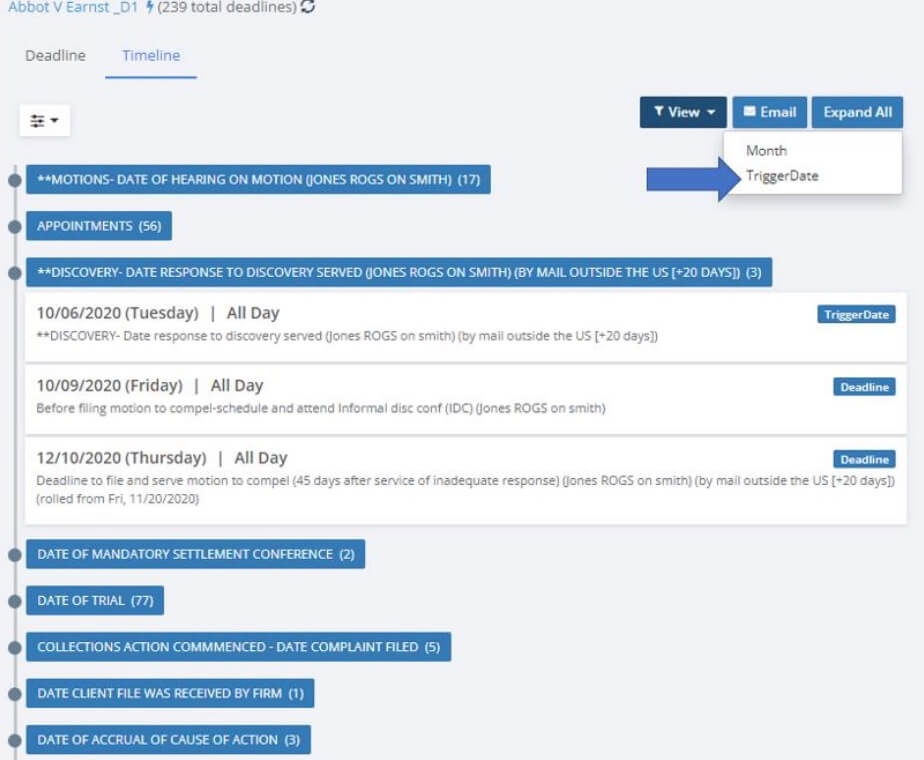
Timeline Reports: Users can explore a timeline view of their deadlines, grouped by months or by trigger date.
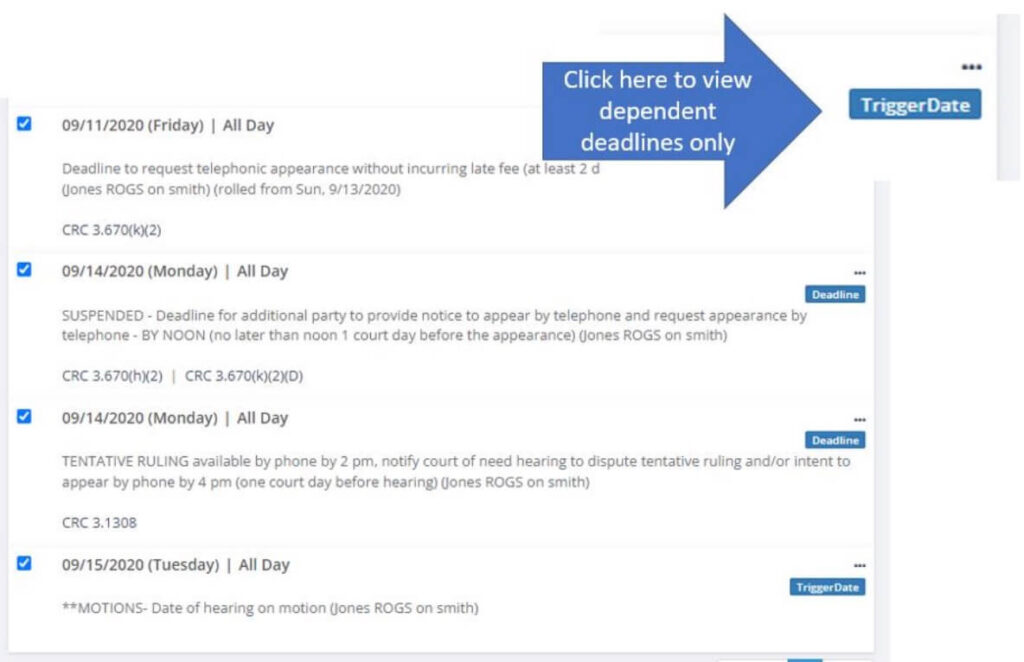
Report Sorted by Trigger Date: This report provides a breakdown of deadlines that run off a specific trigger date.
User Reports
User reports are all about individual users and their activities. Here are the highlights:
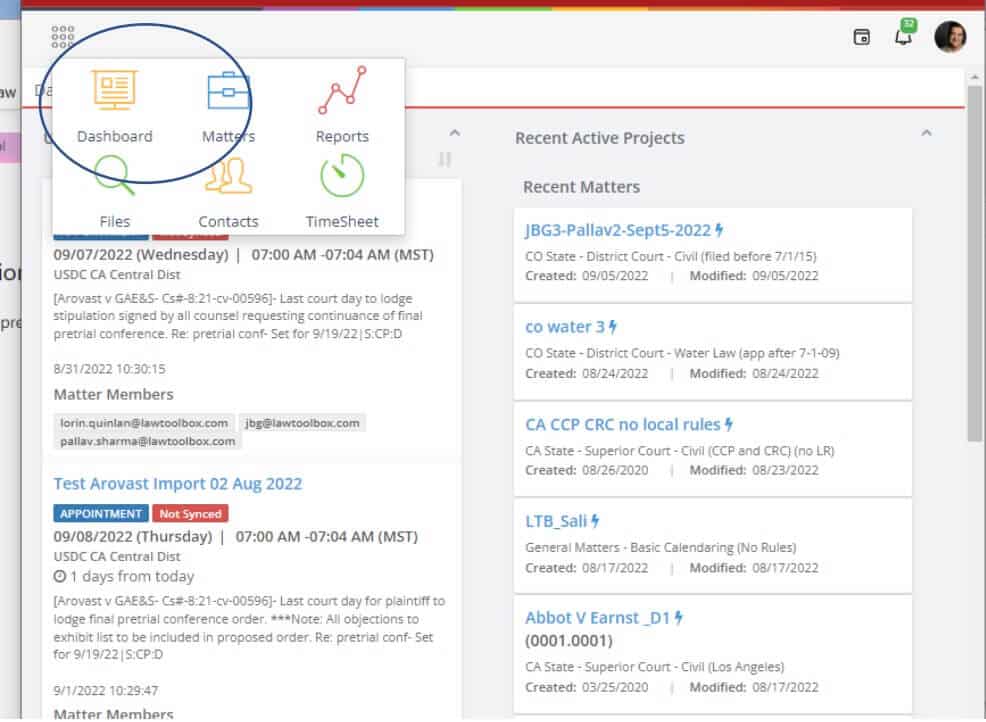
Dashboard Report: Every user can access their own dashboard to view upcoming deadlines and a list of matters that others have recently worked on.
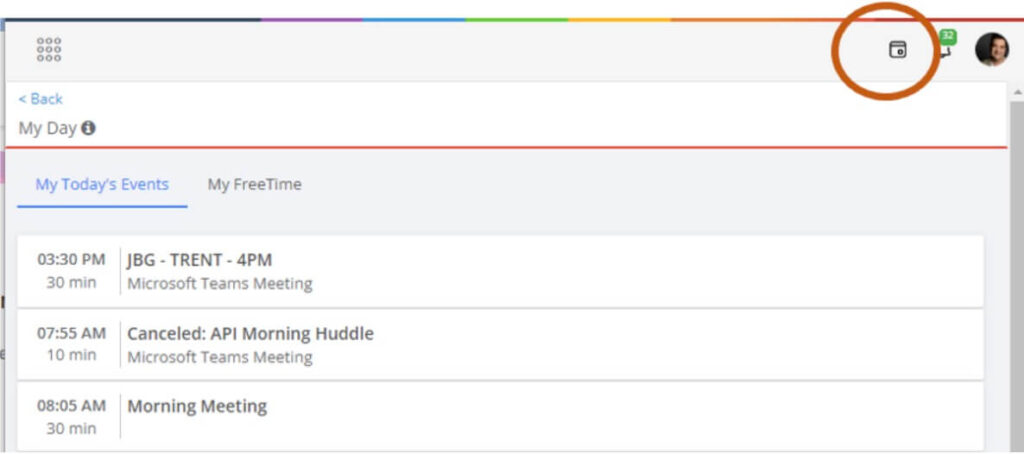
My Day Report: Users can quickly view items added to their calendar by LawToolBox, as well as other events added directly into Outlook.
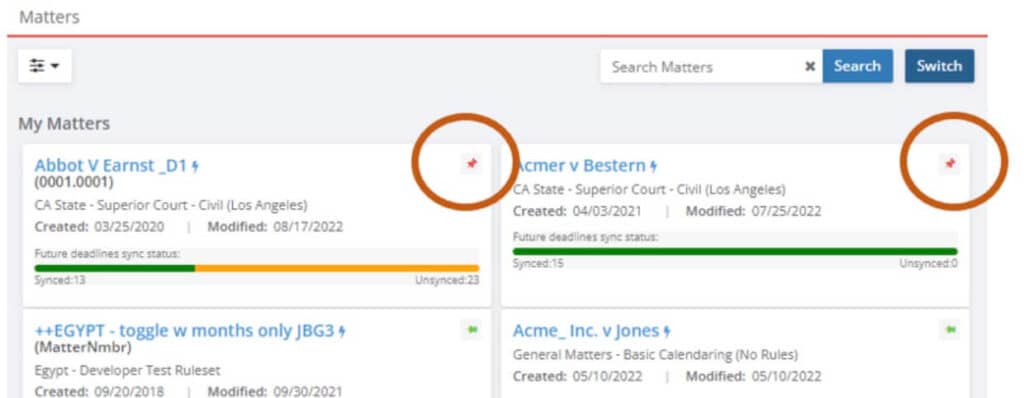
Pinned Matters – Matter Report: Users can pin important matters for easy access.
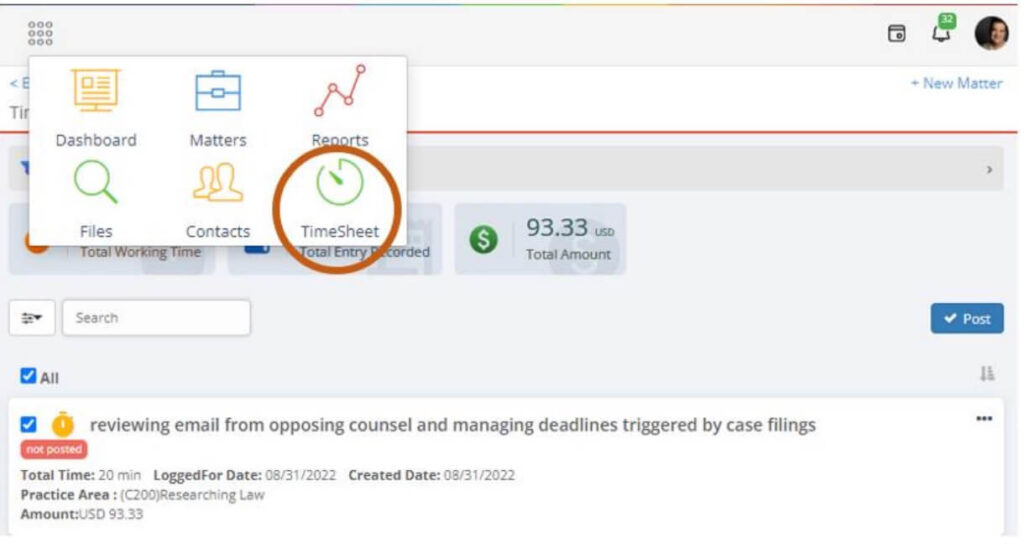
Time Sheet Report: This report shows any time-entries users have made for all their matters or a specific matter within a given time range.
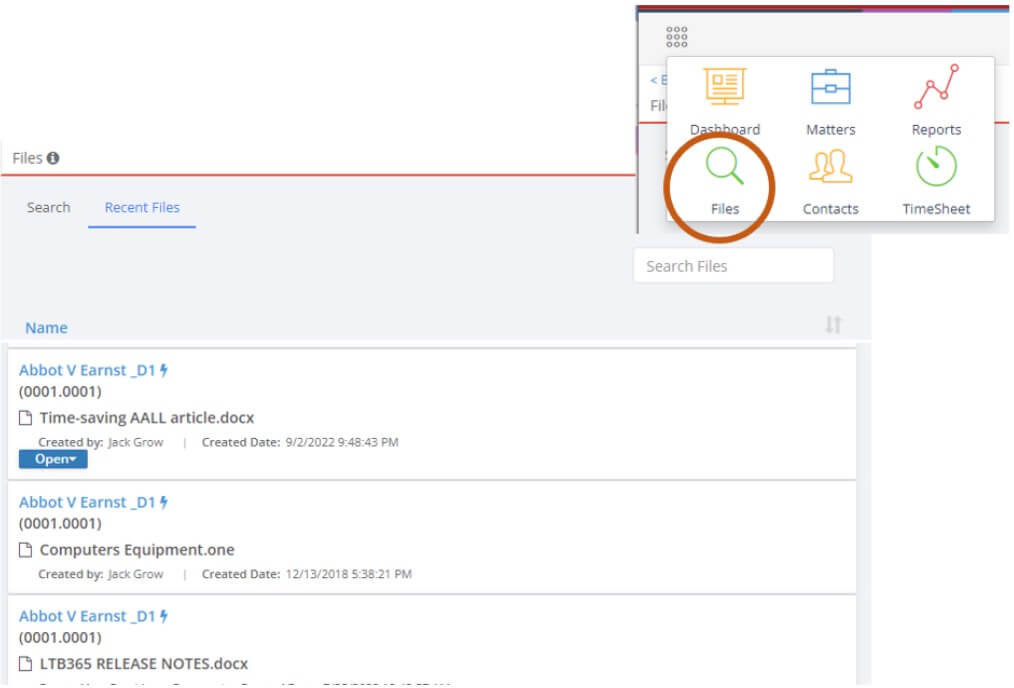
Recent Files Report: Users can retrieve any recent files from SharePoint that they have worked on.
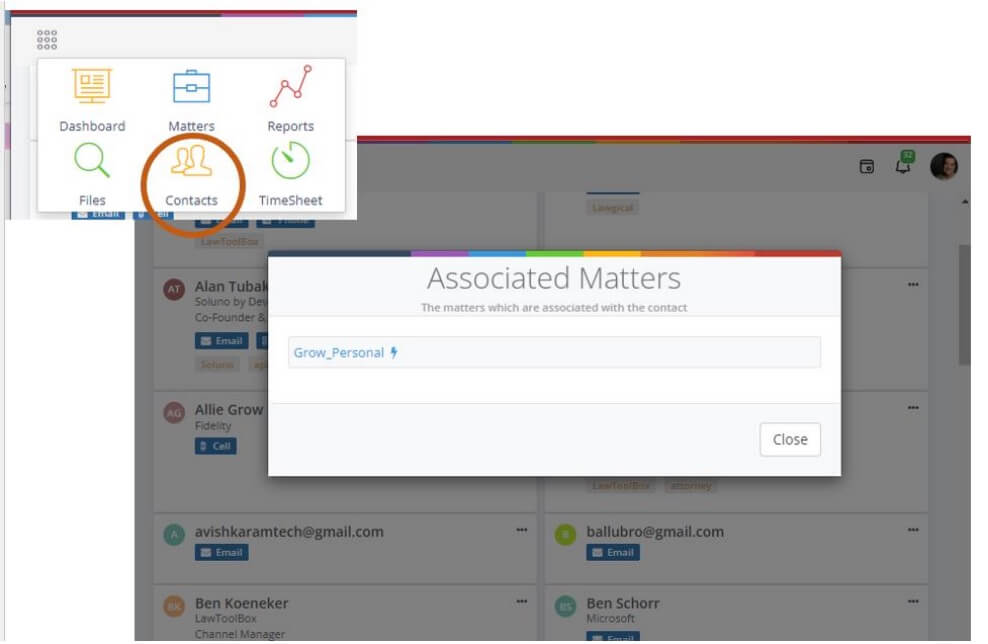
Contacts Matter Report: Click on any contact to get a quick view of any matter they have been added to.
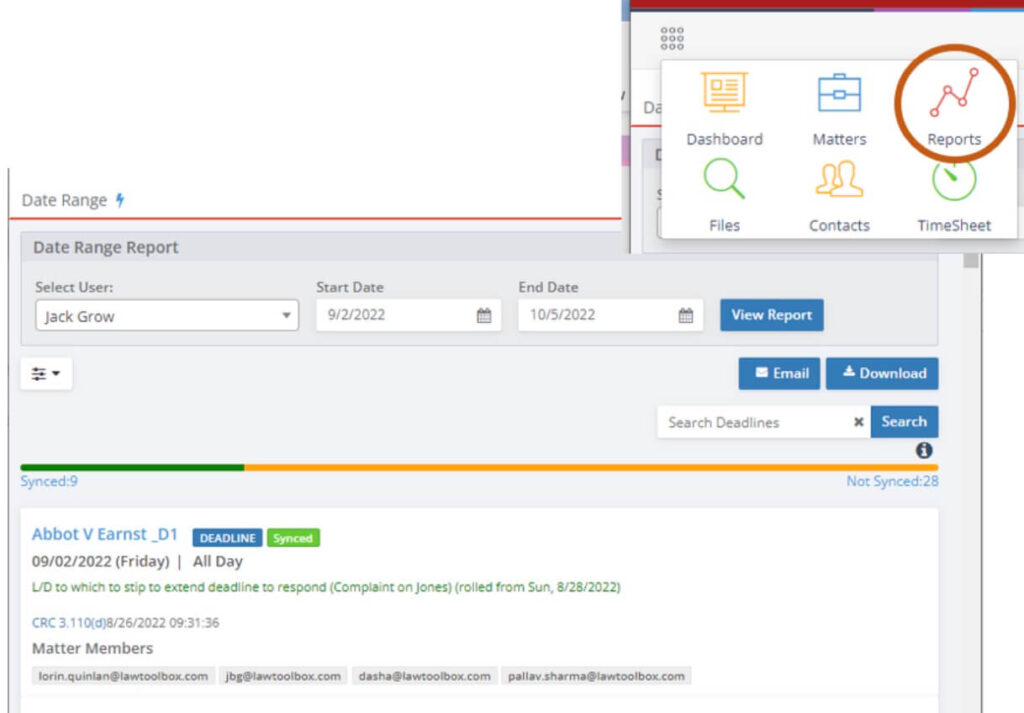
Date Range Report: Users can generate a report on upcoming deadlines for any specified date range.
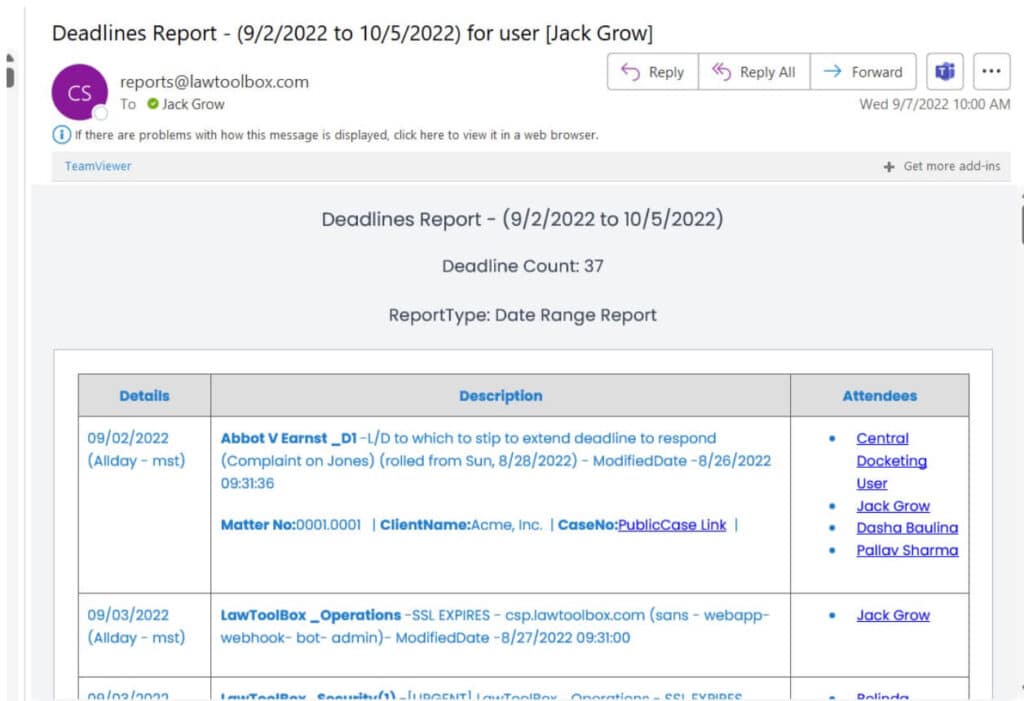
Email Date Range Reports: The date range report can be emailed to the user.
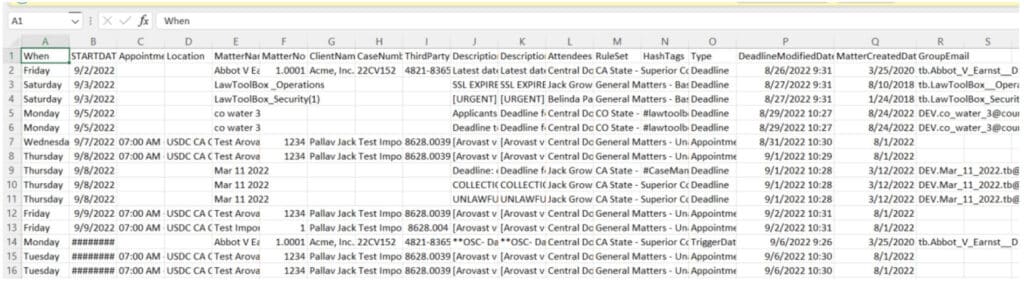
Download CSV Date Range Report: The date range report can also be downloaded in CSV format, allowing filtering and manipulation in Microsoft Excel.
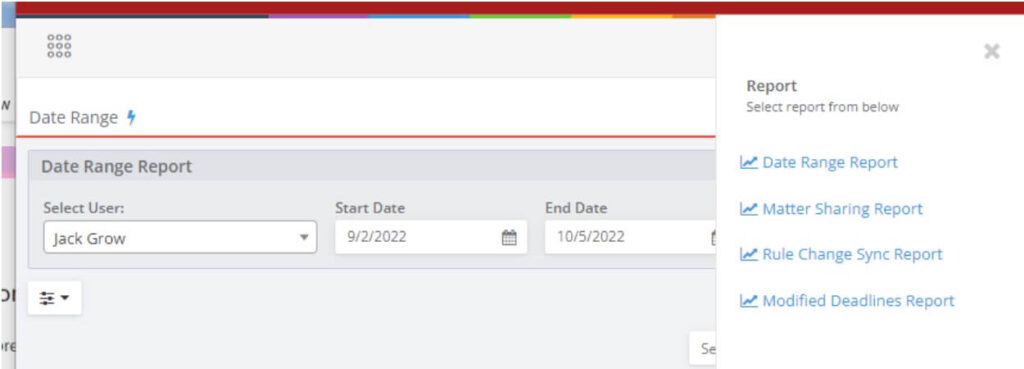
Action Menu for Reports: Users can view other types of end-user reports.
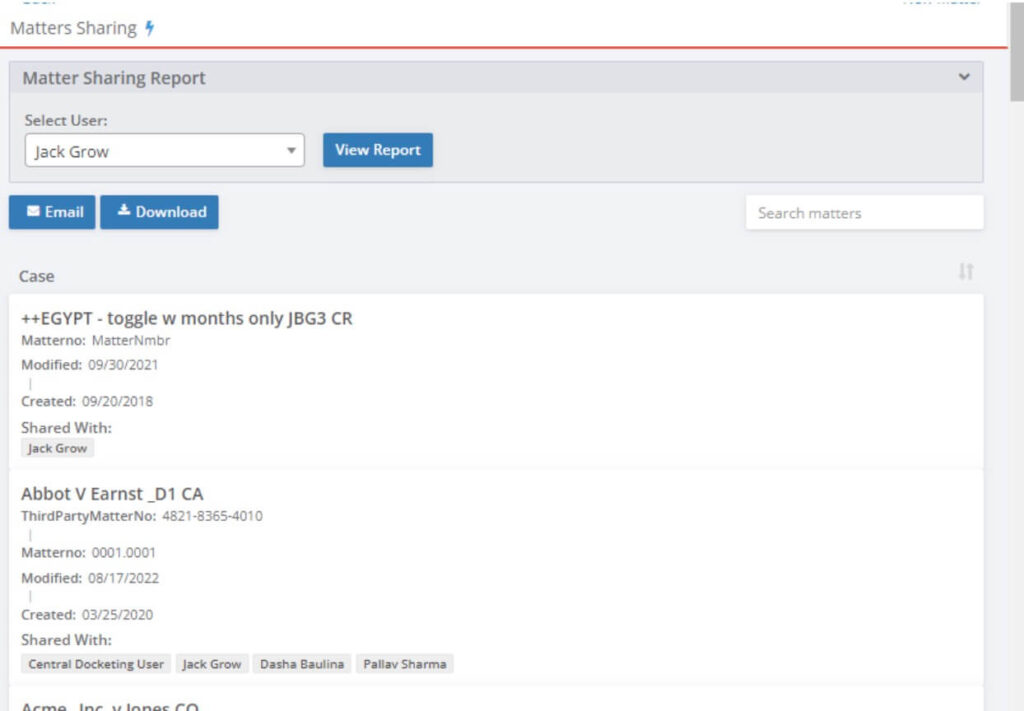
Matter Sharing Report: This report provides insight into who cases are shared with, enabling quick adjustments or updates to sharing settings.
Rule Change Report: Allows users to see if they have any rules-based deadlines within a specific time range that have been modified by LawToolBox rule set managers.
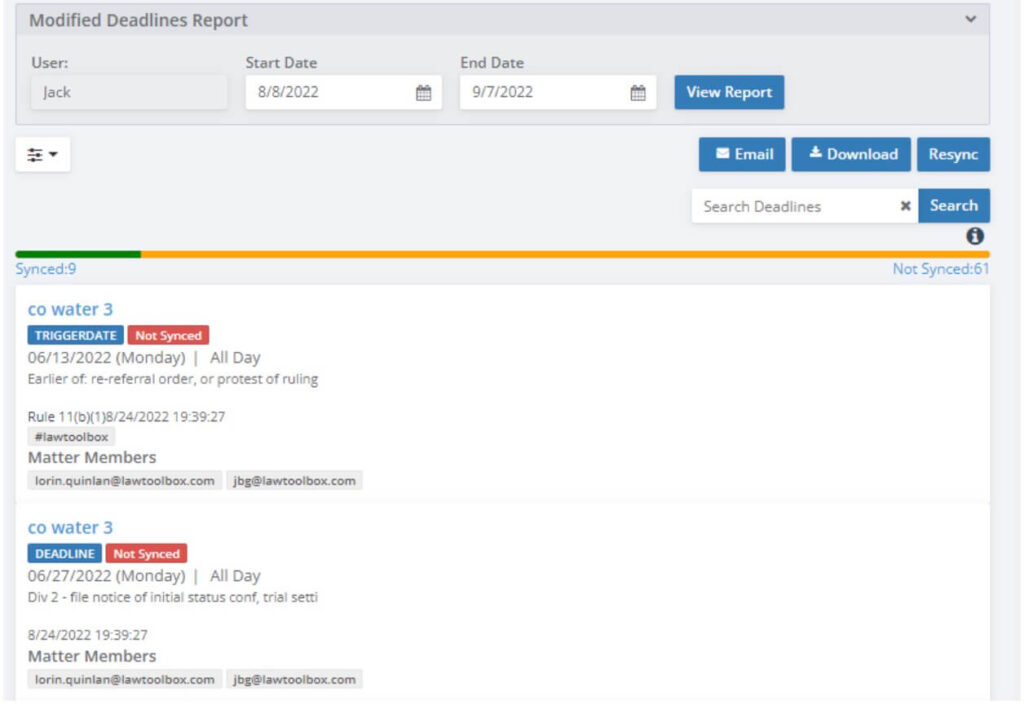
Modified Deadlines Report: Users can run a report across a specific time range to review any deadlines that have been modified during the specified period.
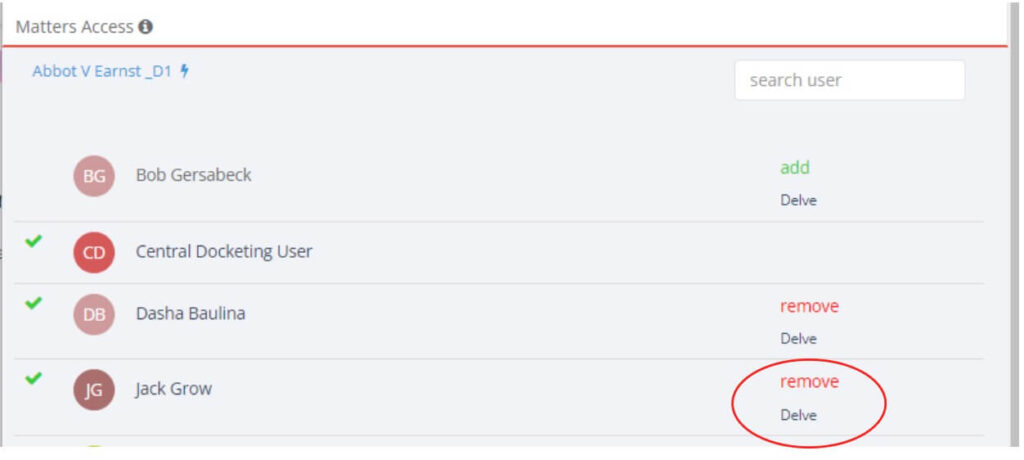
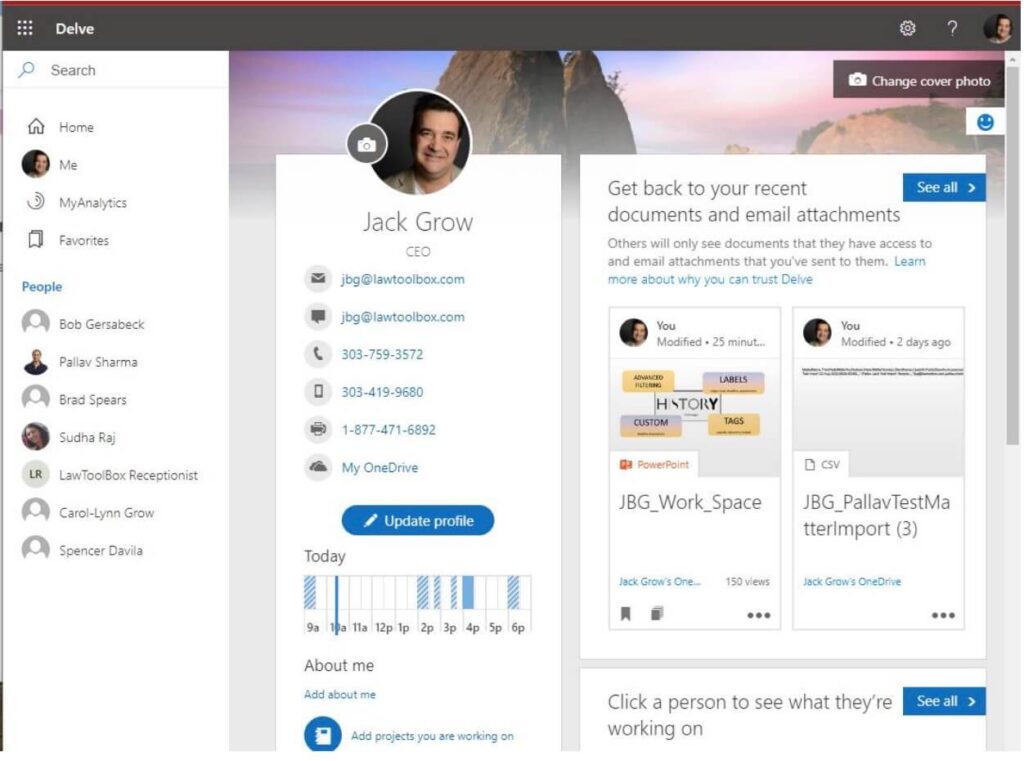
Delve User Activity Report: Users can view what another user has been doing recently, with access controlled and limited by permissions within the Microsoft tenant.
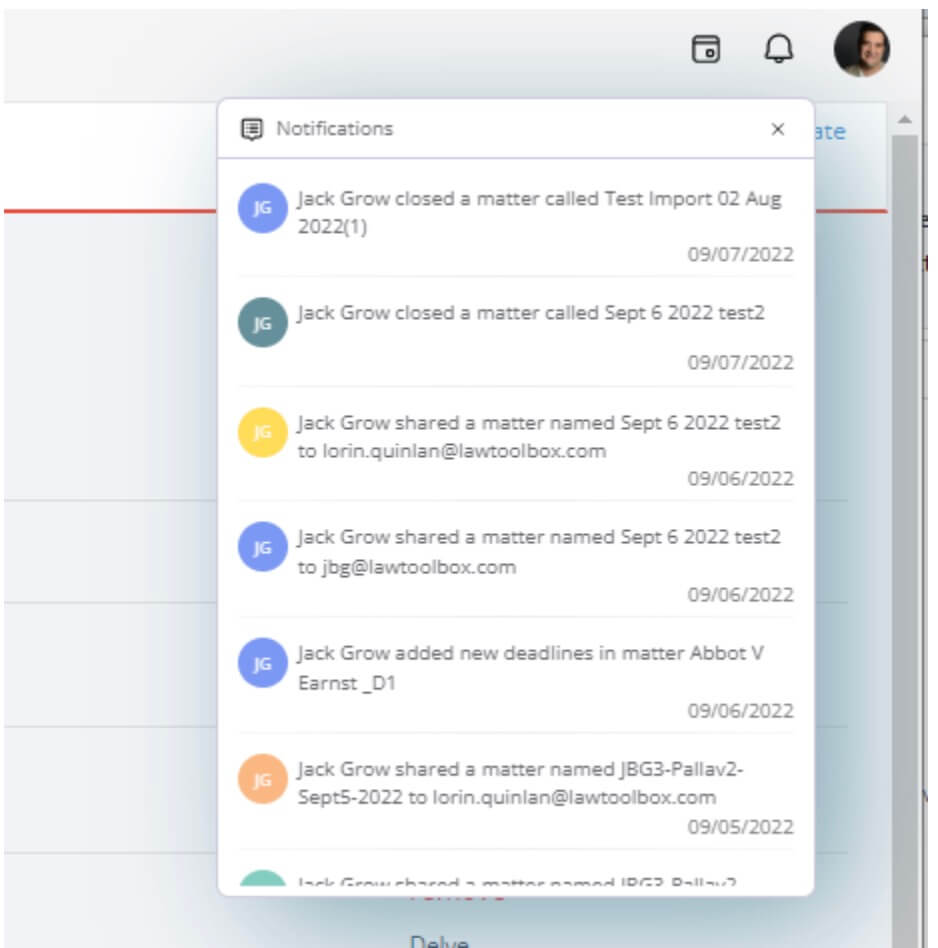
Activity Tracker Report: Users can review recent activity at any time, which can be especially helpful when drafting timesheets.
Admin Reports
Admin reports allow administrators to manage and monitor activities at a higher level. Here’s what’s new:
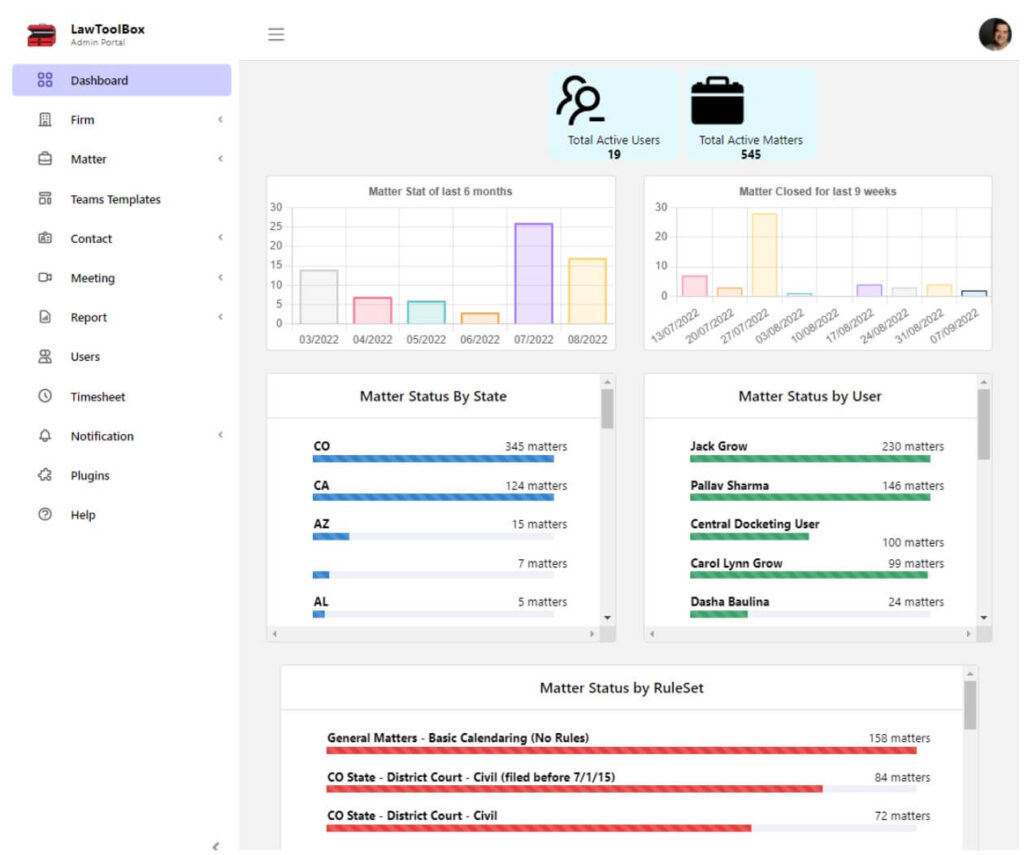
Matter Statistics Report: This report providesan overview of matters opened over the last 6 months, matters closed, matters by state, matters by user, and matters by Rule Set.
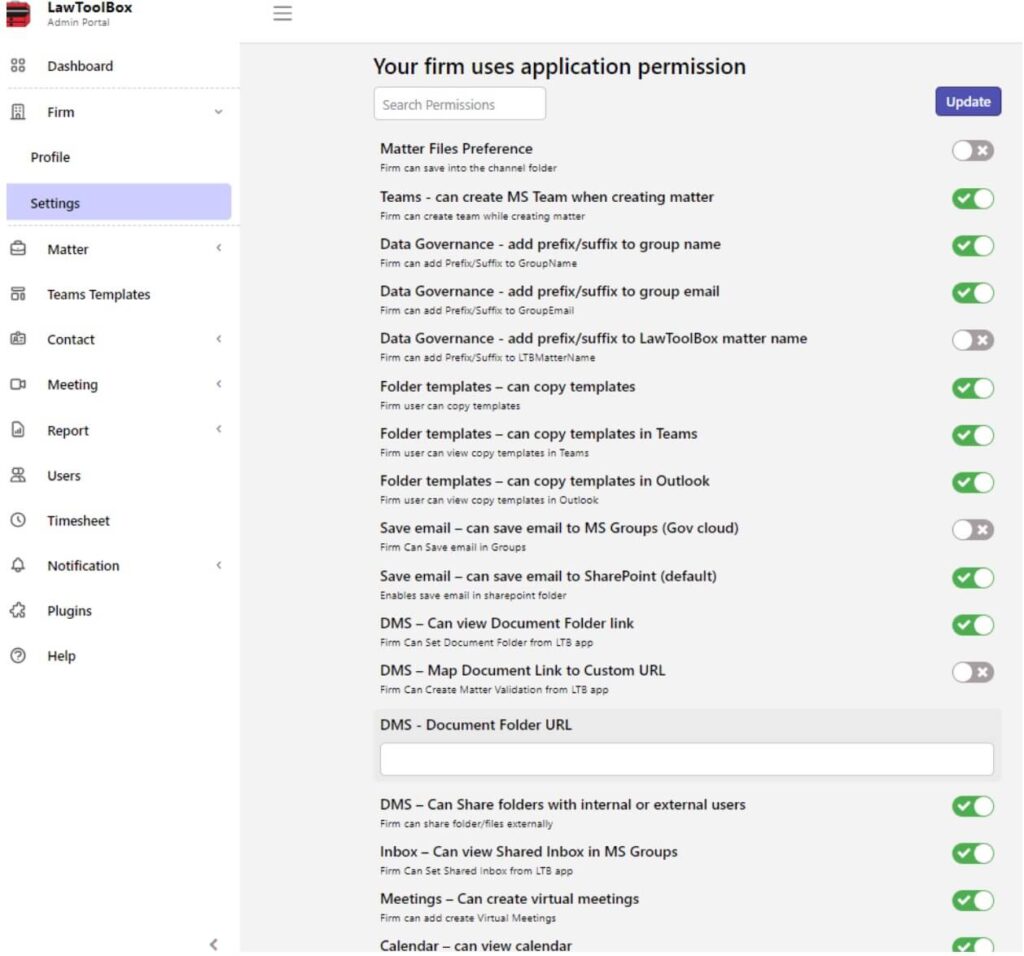
Firm Configuration and Settings Report: Account admins can quickly review all features accessible to the end-user across the firm.
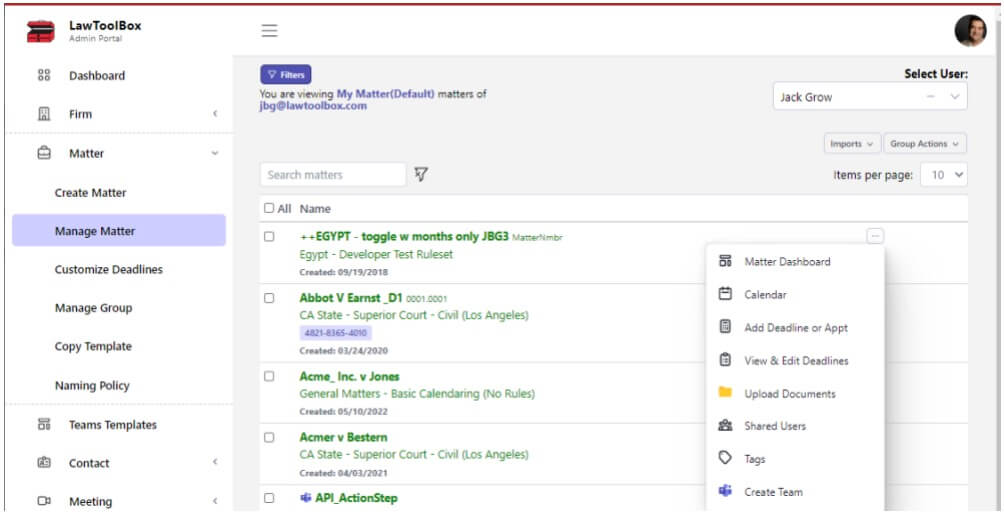
Admin Matter Report: Admins have access to all of the account matters from the admin portal.
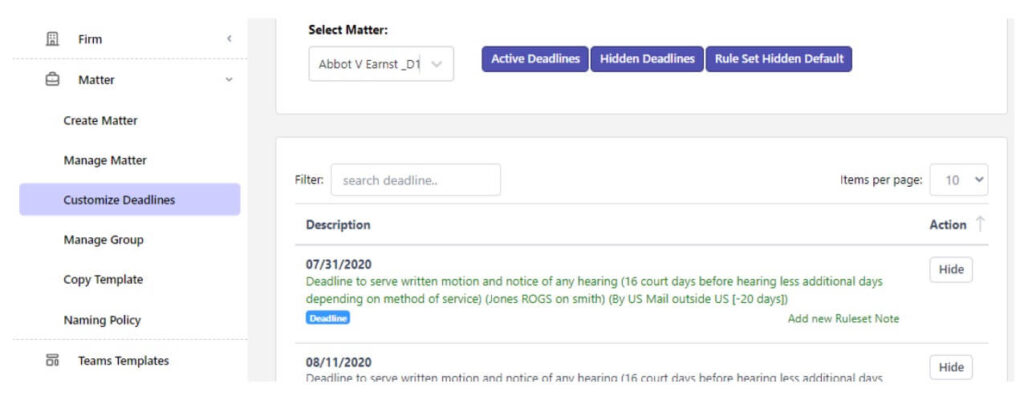
Customized Deadlines Report: Admins have access to tools and reports where they can hide deadlines for every matter in a rule set, or they can add a rule set note that will appear every time a designated deadline is calculated for any matter.
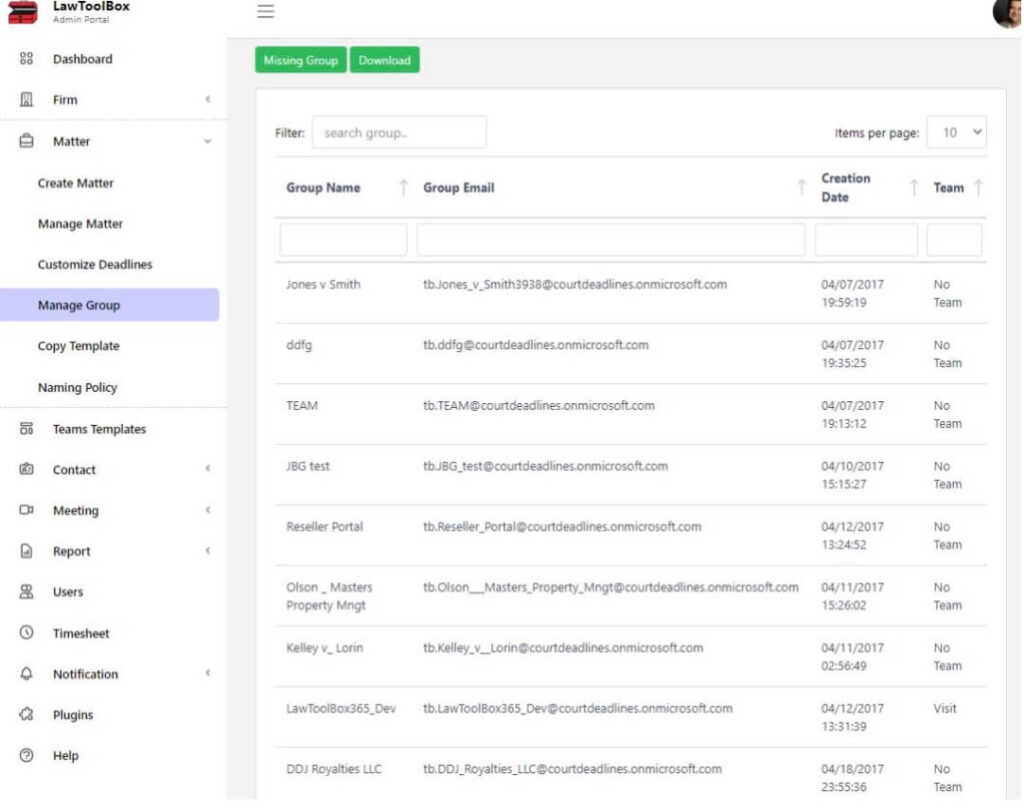
Manage Group Report: This report is crucial to identify any LawToolBox matters that are missing a GROUP or missing a TEAM.
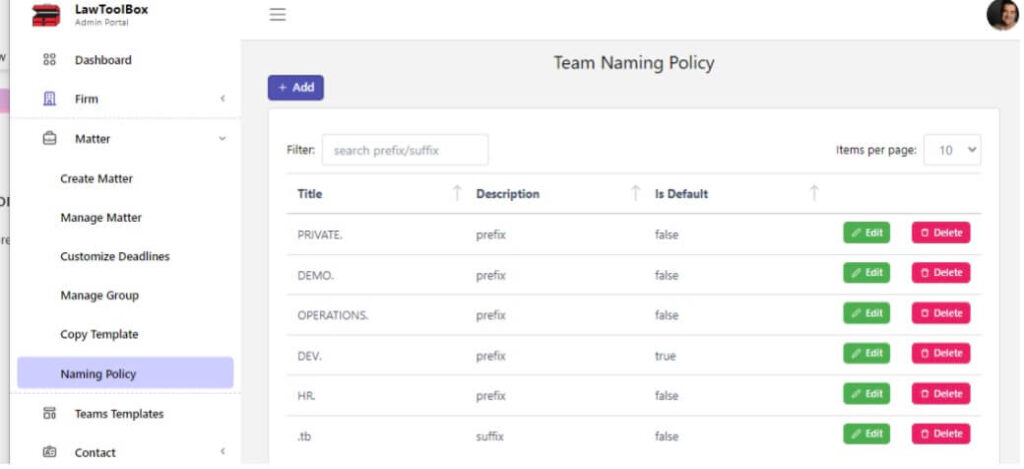
Data Governance – Naming Policy Report: Admins can quickly review and update naming policies that apply to newly created matters.
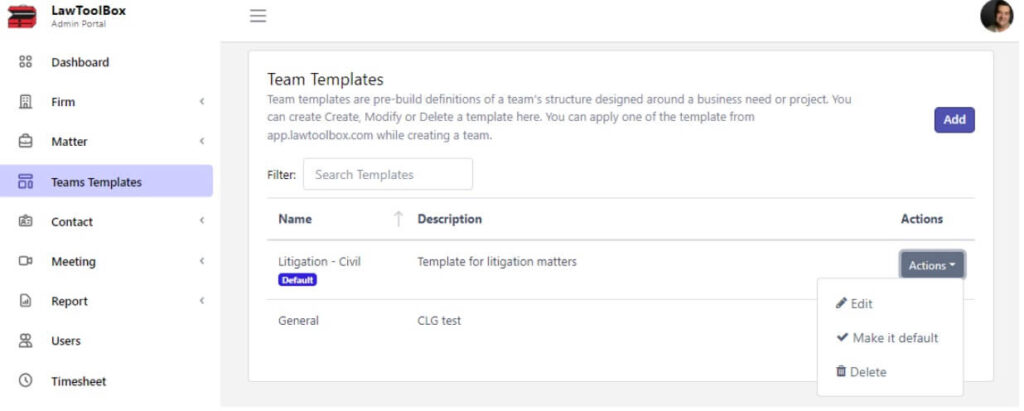
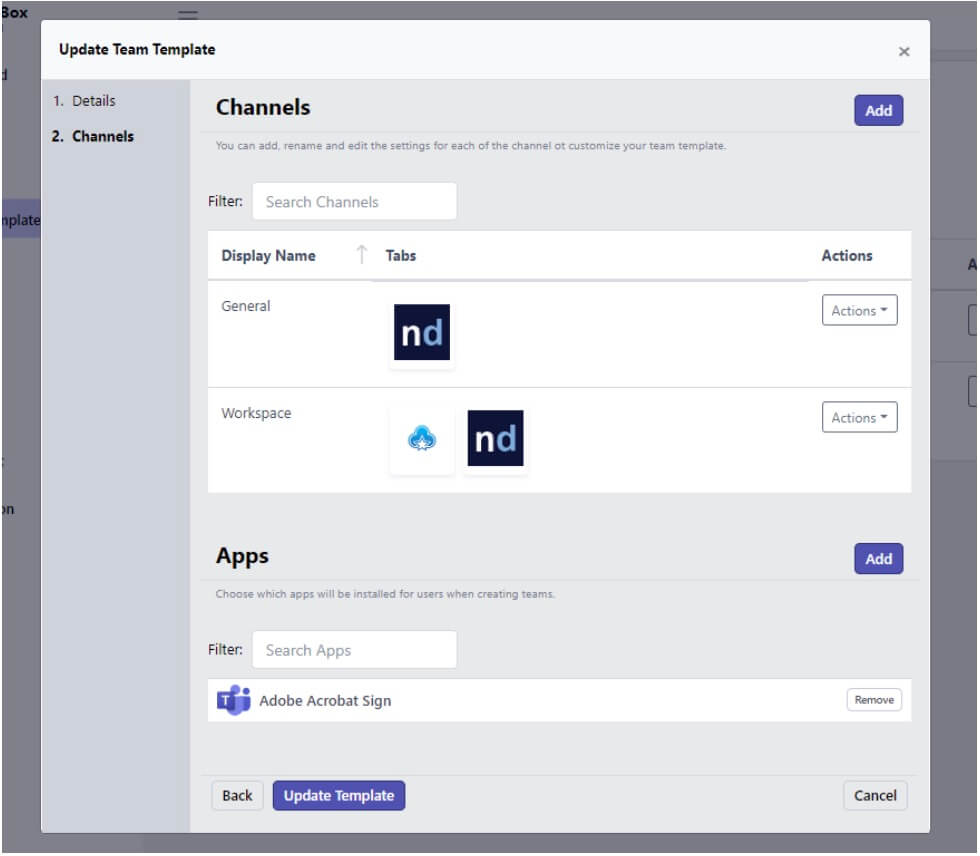
Teams Templates Report: Admins can quickly review and update channels and tabs that can be auto added to newly created matters.
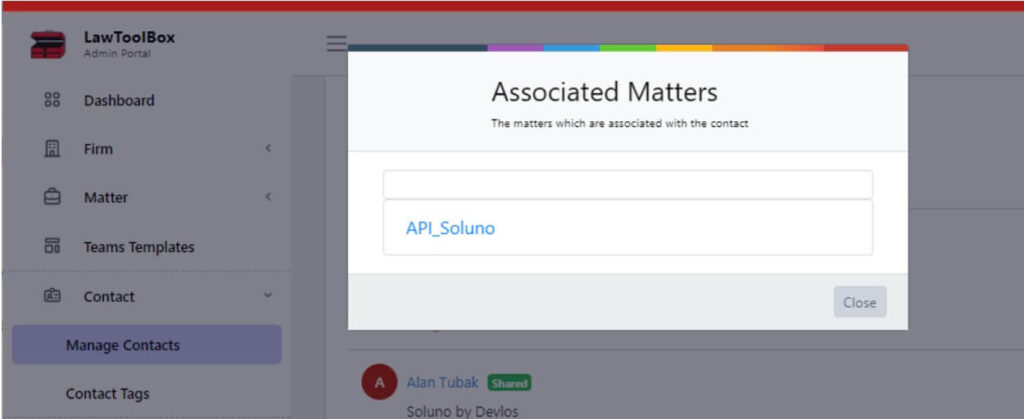
Contact Matter Report: Admins can access all contacts and view a report of all matters the contact has been added to.
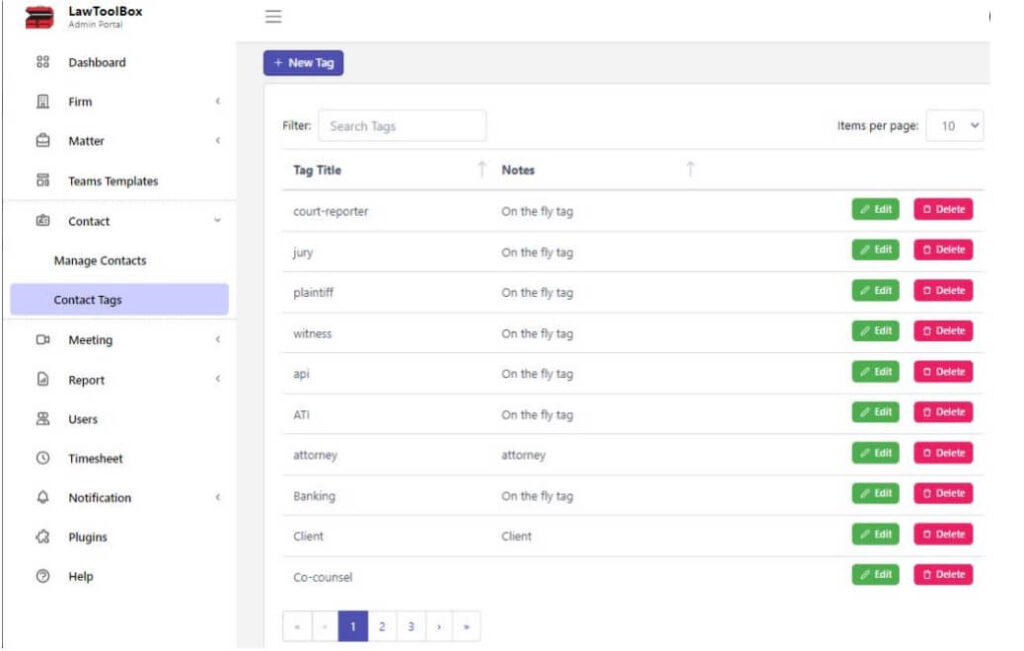
Report of Matter & Contact Tags: Admins can access all user-created tags that can be associated with a matter or contact.
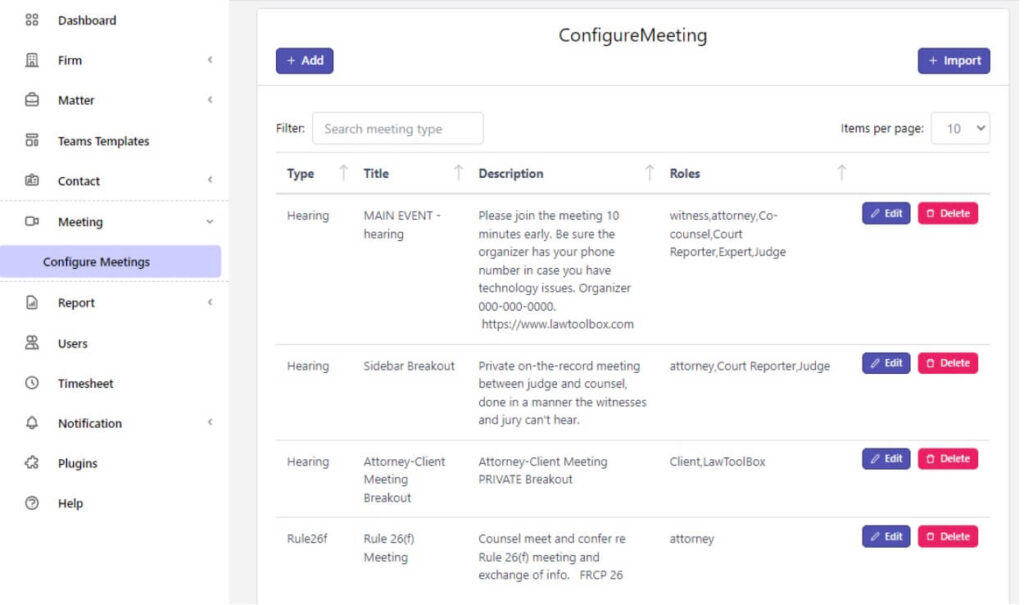
Frequent Meeting Templates Reports: Admins can view and manage virtual meeting templates that can be used to auto-generate not only content for meetings, but it can also add users to meetings based on their role in the matter.
Deadline Reports: The admin can download all of the reports across the firm or for any individual user in the firm.
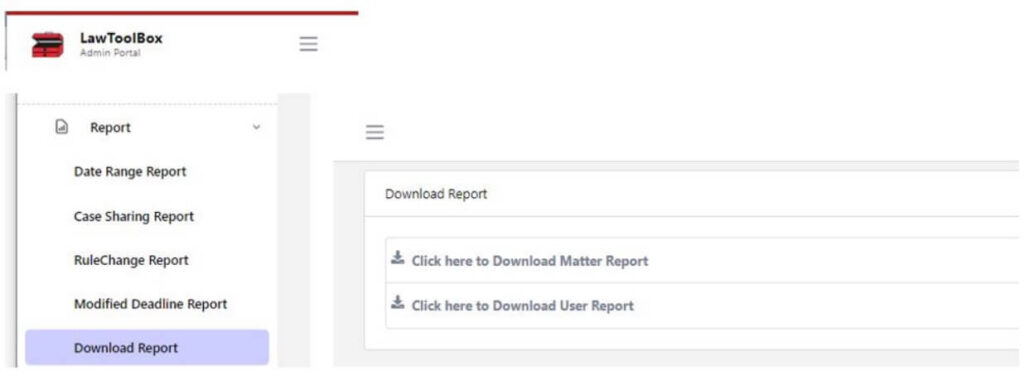
Matter and User Reports: LawToolBox considers your data to be yours. If you need to export LawToolBox matters or user lists, we provide that tool.
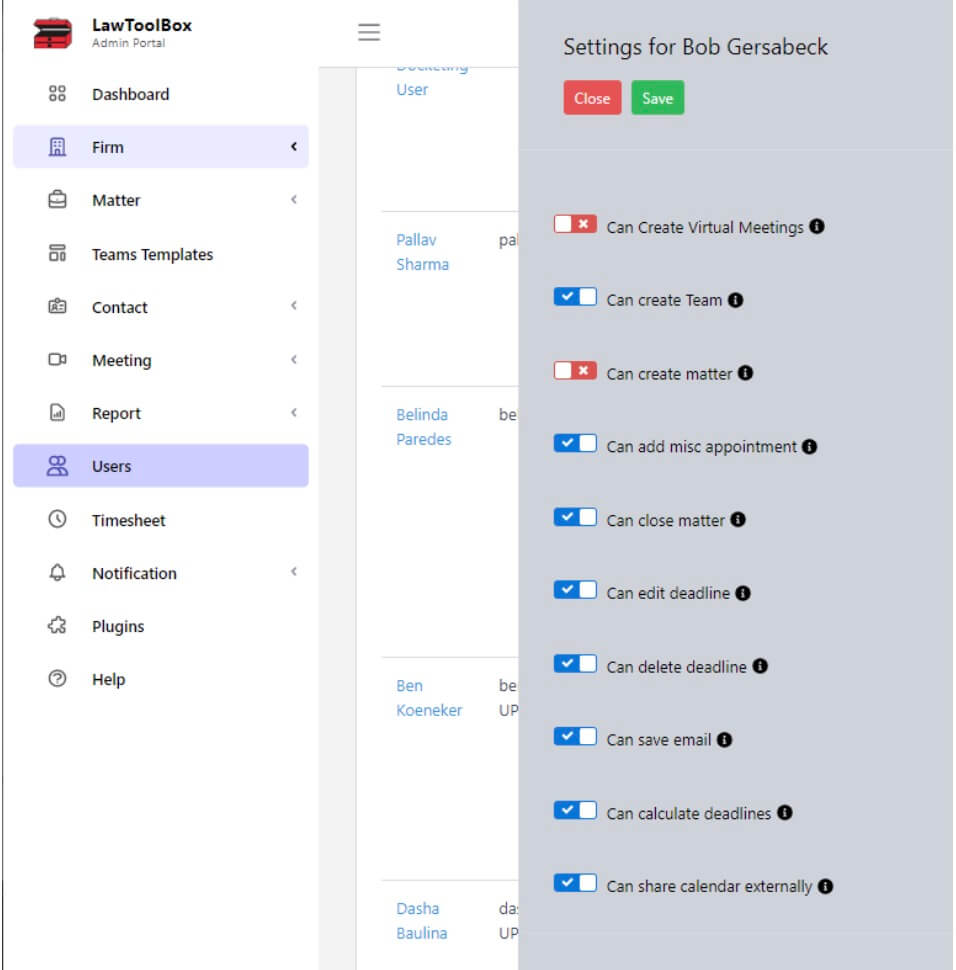
User & Configuration Reports: Admins can review an online list of LawToolBox users, and can quickly review and configure which features that user has access to.
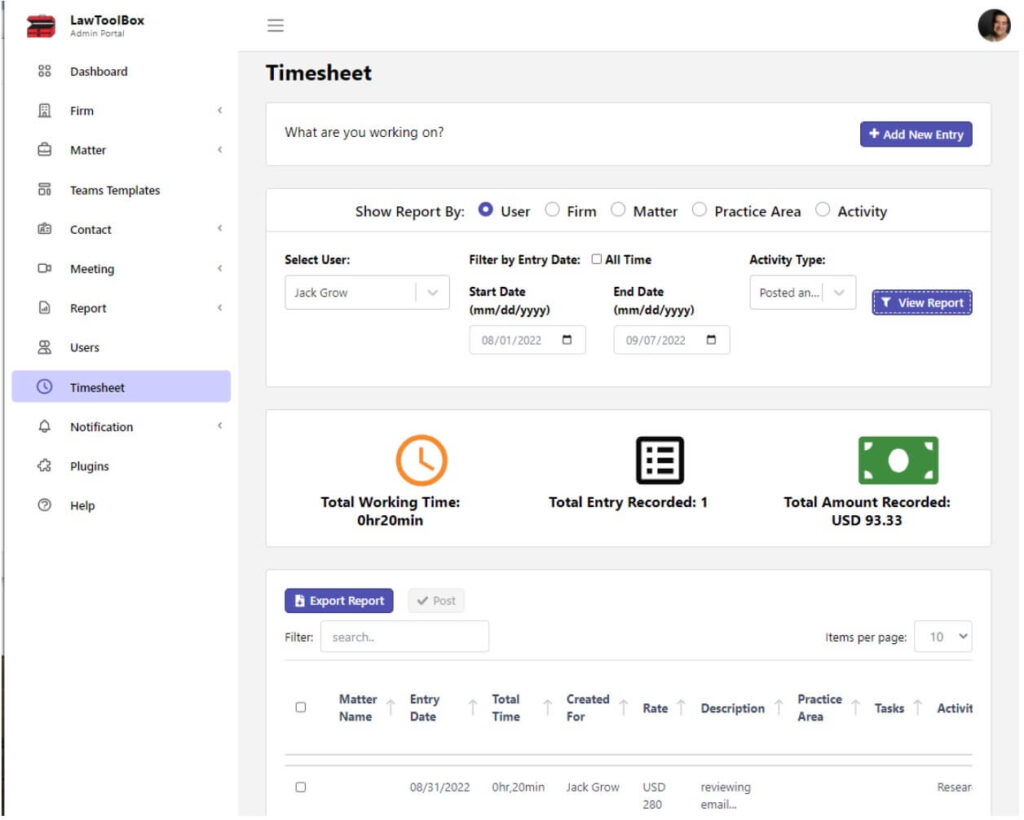
Time Sheet Report: From the “Time Sheet” option in their waffle menu, the admin can see any time-entries they have made for all their matters or a specific matter within a given time range.
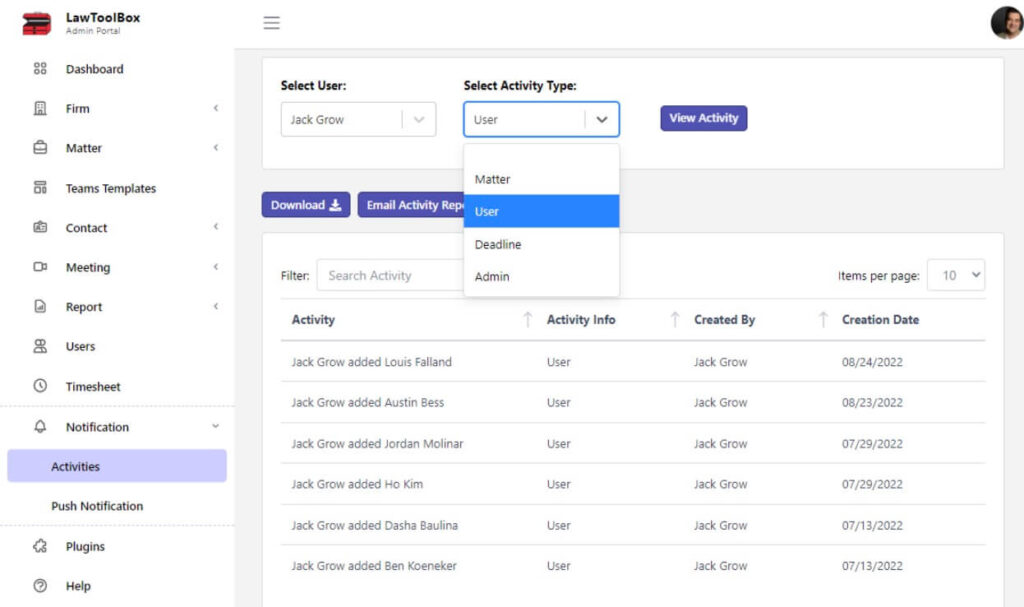
Activities Reports: The admin can generate activity reports by matter, user, deadline, or admin.
At LawToolBox, we’re continually refining and expanding our platform to make legal deadline management as effortless as possible. We hope these updated reporting features will help your firm manage your matters more effectively and efficiently. If you have any questions or need further assistance, don’t hesitate to reach out to our support team.
Download this post as a PDF with screenshots of each report.
We’re thrilled to announce the latest enhancements to our reporting capabilities. This blog post will take you through our new report categories and explain how they can streamline your legal workflow. You can also click here for an in-depth look inside each report.
A. Matter Reports
LawToolBox is built on the Microsoft 365 platform, which is an enterprise platform Microsoft spends over $1 billion per year defending, and that is relied on by the biggest organizations in the world. Our deep integration allows end-users to buy LawToolBox on Microsoft paper, from the commercial marketplace in AppSource or Microsoft Azure. LawToolBox has long been co-sell ready, was recently promoted to a TOP-TIER MICROSOFT PARTNER. Further, an organization’s MACC (Microsoft Azure Consumption Credits) can be used to purchase LawToolBox instead of adding a new line item to your invoices.
A1. MATTER DEADLINE REPORTS
The deadline chart can be accessed from LawToolBox add-ins and apps by anyone the matter is shared to. The end-user can click on authority (which will open the authority typically on a public website maintained by the applicable court) or add their own links to any event:
A2. DETAILED DEADLINE DESCRIPTIONS
For deadlines generated by LawToolBox the end-user can click on “details” to delve deeper into the content:
A3. EMAIL or SEND DEADLINE REPORTS
Deadline charts can be emailed to end-user, an external user, or the matter’s OneNote:
A4. DOWNLOAD DEADLINE REPORTS
Microsoft Word version of the deadline charts can also be downloaded (and then the end-user can save the deadline chart to a physical matter file):
A5. TIMELINE REPORTS
From the matter the end-user can also explore a “Timeline” view where they can see deadlines grouped by months:
or by trigger date:
A6. REPORT SORTED BY TRIGGER DATE
From the deadline chart if the end-user clicks on the “TriggerDate” label they can see a view a report of the deadline chart that only displays that trigger date and the dependent deadlines that run off that date:
B. USER REPORTS
B1. DASHBOARD REPORT
Every user can access their own USER DASHBOARD where they can view any upcoming deadlines for the next several days, and also they can see a list of matters shared to them that other people have recently worked on:
B2. MY DAY REPORT
From anywhere in the app they can click the “My Day” icon in the upper right to pull up a list of not only items added to their calendar my LawToolBox, but they can also see any other events they have added directly into Outlook!
B3. PINNED MATTERS – MATTER REPORT
On their Matter List report the end-user can “pin” important matters that they want easy access to:
B4. TIME SHEET REPORT
From the “Time Sheet” option in their waffle menu the end-user can see any time-entries they have made for all their matters or a specific matter within a given time range:
B5. RECENT FILES REPORT
From the “Files” item in the waffle menu the end-user can retrieve any recent files from SharePoint that they have worked on (and which they have been given access to) (NOTE – it takes a long time typically for Microsoft graph API to return this query):
B6. CONTACTS MATTER REPORT
Click on any Contact and you can get a quick view of any matter they have been added to:
B7. DATE RANGE REPORT
The end-user can generate a report on upcoming deadlines for any specified date range. Admin users can see “date range reports” for any user in the firm, or EVERY user in the firm:
B8. EMAIL DATE RANGE REPORTS
The date range report can be emailed to the end-user (who can share it with anyone they like):
B9. DOWNLOAD CSV DATE RANGE REPORT
The date range report can also be downloaded in CSV format, so it can be filtered and manipulated in Microsoft Excel:
B10. ACTION MENU for REPORTS
You can view other types of end-user reports
B11. MATTER SHARING REPORT
The matter sharing report gives a quick insight into who cases are shared with so that end users can instantly see whether sharing needs to be adjusted or updated:
B12. RULE CHANGE REPORT
This report allows the end user to see if they have any RULES-BASED deadlines within a specific time range that have been modified by LawToolBox rule set managers:

B13. MODIFIED DEADLINES REPORT
Allows the end-user to run a report across a specific limited time range to review any deadlines that have been modified during the specified period!
B14. DELVE USER ACTIVITY REPORT
The end user can navigate to the “Share Matter” for any case and then click on the “Delve” button next to the users name to use Microsoft Graph to view what that user has been doing recently (access is controlled and limited by permissions within the Microsoft tenant)
B15. ACTIVITY TRACKER REPORT
The end-user can click their “Notifications” bell in the upper right hand corner of their app to review the recent activity at any time. This is especially helpful when drafting timesheets:
C. ADMIN REPORTS
C1. Matter Statistics Report
The account admin has a bird’s eye view of all features accessible to the end-user across the firm
C2. Firm Configuration and Settings Report
The account admin has a bird’s eye view of all features accessible to the end-user across the firm
C3. Admin Matter Report
Admins have access to all of the account matters from the admin portal:
C4. Customized Deadlines Report
Admins have access to tools and reports where they can hide deadlines for every matter in a rule set, or they can add a rule set note that will appear every time a designated deadline is calculated for any matter:
C5. Manage Group Report
This report takes a long time to retrieve from Microsoft Graph API (so click once and wait). This report is VERY USEFUL to identify any LawToolBox matters that are missing a GROUP or missing a TEAM! You can download this report and then manipulate the data in excel.
C6. Data Governance – Naming Policy Report
Admins can quickly review and update naming policies that apply to newly created matters:
C7. Teams Templates Report
Admins can quickly review and update channels and tabs that can be auto added to newly created matters:
C8. Contact Matter Report
Admins can access all contacts and view a report of all matters the contact has been added to:
C9. Report of Matter & Contact Tags
Admins can access all user-created tags that can be associated with a matter or contact:
C10. Frequent Meeting Templates Reports
Admins can view and manage virtual meeting templates that can be used to auto generate not only content for meetings, but it can also add users to meetings based on their role in the matter.
C11. DEADLINE REPORTS
The admin can download all of the reports across the firm or for any individual user in the firm:
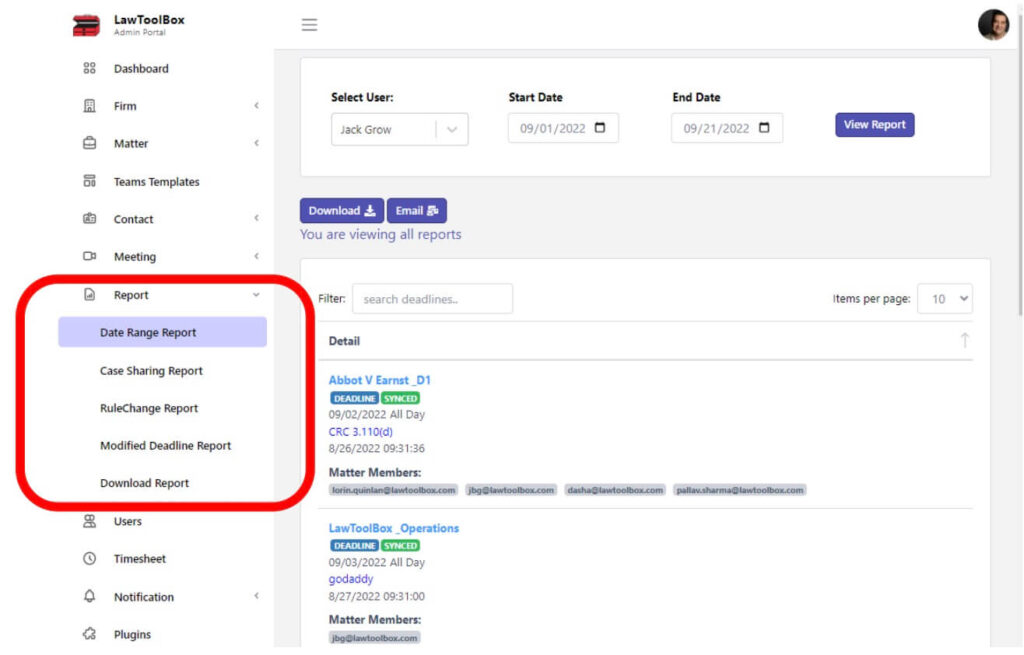
DATE RANGE REPORT
Admin can generate a report on upcoming deadlines for any specified date range. The date range report can be emailed to the end-user (who can share it with anyone they like). The date range report can also be downloaded in CSV format, so it can be filtered and manipulated in Microsoft Excel. Admin users can see “date range reports” for any user in the firm, or EVERY user across the entire firm. See B7 – B9 above.
MATTER SHARING REPORT
The matter sharing report gives a quick insight into who cases are shared with so that end users can instantly see whether sharing needs to be adjusted or updated. See B11.
RULE CHANGE REPORT
This report allows the end user to see if they have any RULES-BASED deadlines within a specific time range that have been modified by LawToolBox rule set managers. See B12 above.
MODIFIED DEADLINES REPORT
Allows the end-user to run a report across a specific limited time range to review any deadlines that have been modified during the specified period! See B13 above.
C12. Matter and User Reports
LawToolBox considers your data to be yours. If you need to export LawToolBox matters or user lists – we provide that tool:
C13. User & Configuration Reports
Admins can review an online list of LawToolBox users, and can quickly review and configure which features that user has access to:
C14. TIME SHEET REPORT
From the “Time Sheet” option in their waffle menu the end-user can see any time-entries they have made for all their matters or a specific matter within a given time range. See B4 above.
C15. Activities Reports
The admin can generate activity reports by matter, user, deadline or admin